Manage settings
District-level administrators can configure District Classroom Library Manager to meet their schools' needs. Settings are organized into the following categories:
- District oversight and classroom library communications
- Classroom, title, and audience-level imports
- Public lists
- Classroom catalog and title options
- District-wide settings for sites and teachers
|
Note: District-level settings are automatically applied to all schools in the district. |
To access your settings:
- Log in to Destiny as a district-level administrator.
-
From the primary navigation bar, select
 > Classroom Library. The Classroom Directory page appears.
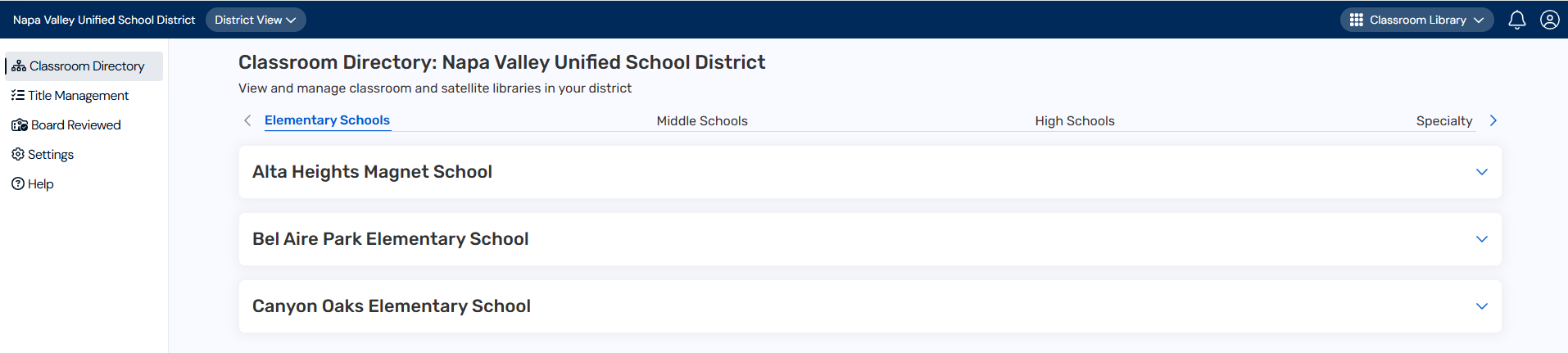
- From the sidebar, click Settings. The Settings page appears.

The following table describes the available settings:
| Setting | Description | |
|---|---|---|
| Specify district oversight and classroom library communications | ||
| Enable district management of classroom titles |
Assign audience levels to titles without affecting classroom libraries or public lists.
|
|
| Enforce audience levels for All Titles or Specific Titles |
Push audience levels to the district for all titles or specific titles.
|
|
| Show unused titles in Title Management |
Show or hide titles that aren't currently used by any site or classroom.
|
|
| Allow school-level administrators to access Title Management |
Give site-level administrators permission to manage classroom titles.
|
|
| Allow teachers to start new libraries |
Give teachers permission to create a new classroom library.
|
|
| Teachers can see audience level reasons |
Let teachers view the reason assigned to a title's audience level.
|
|
| Teachers receive an email when a title in their classroom is not approved |
Notify teachers by email when a title is outside its assigned approval level.
|
|
| Import classrooms, titles, and audience levels | ||
| CSV imports for classroom libraries, titles, and audience levels |
Import classroom libraries, titles, or audience levels from a CSV file.
|
|
| Configure public lists | ||
| Allow public list viewers to access additional title details |
Let guests see additional title details on public lists.
|
|
| Classroom catalog and title options | ||
| Catalog other educational materials |
Let teachers add non-book items, such as audiobooks and DVDs.
|
|
| Manually enter titles |
Let teachers add titles manually.
|
|
| Configure district-wide settings for sites and teachers | ||
| Audience Level Reasons |
Create audience level reasons that can be assigned to titles.
|
|
| Title Tags |
Create tags that can be assigned to titles.
|
|
| Funding Sources |
Create funding sources that teachers can assign to new titles.
|
|