Create audience-level reasons
District-level administrators can create standardized audience-level reasons for users with title management permissions to quickly assign to one or more titles.
|
Note: You can create up to 12 audience levels on the Settings page. |
To create audience-level reasons:
- Log in to Destiny as a district-level administrator.
- From the primary navigation bar, select
 > Classroom Library. The Classroom Directory page appears.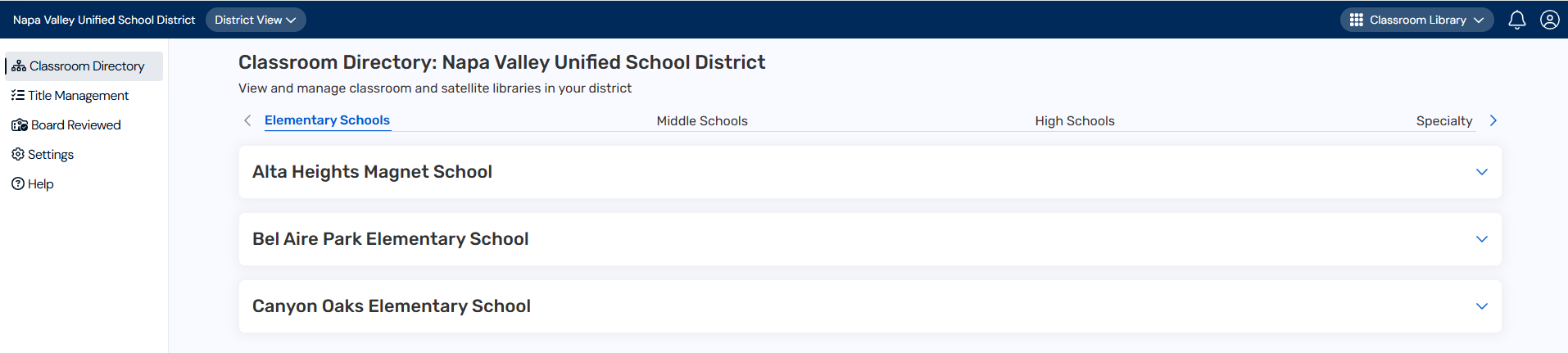
- From the sidebar, click Settings.
- In the Configure audience level reasons and title tags row, click
 .
. - Under Audience Level Reasons, type a reason in the field.

- Click Add. The reason appears.
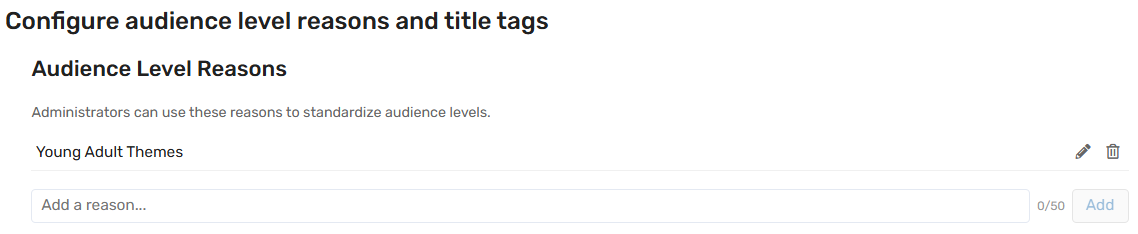
- Repeat steps 4-5 for each reason you want to add.
- To edit a reason, click
 .
. - To delete a reason, click
 . A message asks you to confirm.
 - You can set audience levels on the Title Management page.
|
Notes: |