Create title tags
District-level administrators can create and use title tags to communicate key information to teachers, helping them stay informed about action items.
|
Note: You can create up to 10 title tags on the Settings page. |
To create title tags:
- Log in to Destiny as a district-level administrator.
- From the primary navigation bar, select
 > Classroom Library. The Classroom Directory page appears.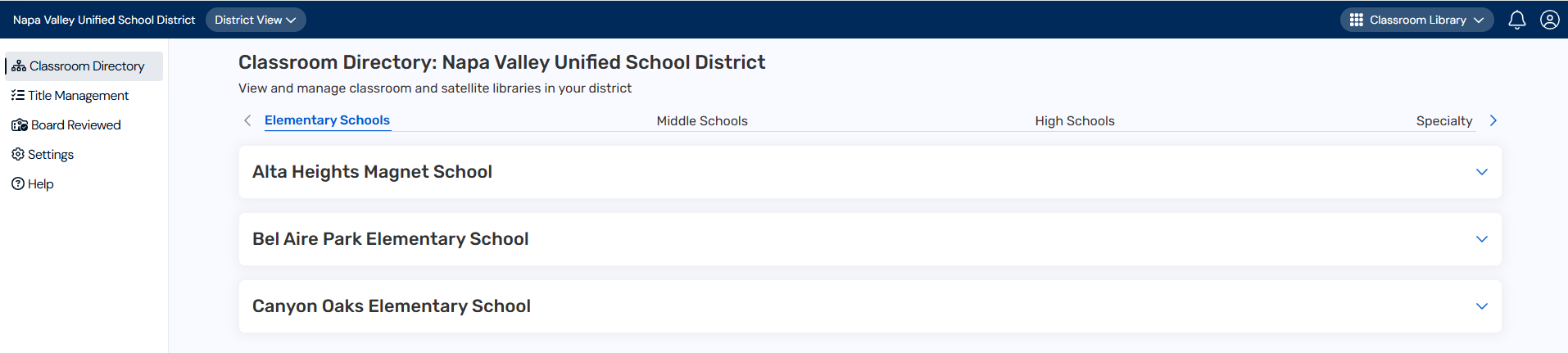
- From the sidebar, click Settings.
- In the Configure audience level reasons and title tags row, click
 .
. - Under Title Tags, enter a tag in the field.

- Click Add.The tag appears in the list.

- Repeat steps 5 and 6 for each tag you want to add.
- To edit a tag, click
 .
. - To delete a tag, click
 . A message asks you to confirm. Deleting a tag will remove it from every title it’s been applied to.
 - You can tag titles on the Title Management page.
|
Notes: |