Enable student rostering
District-level administrators can enable student rostering so teachers do not have to manage students manually in their classroom libraries.
|
Note: The Enable Rostering setting is off by default. |
To enable student rostering:
- Log in to Destiny as a district-level administrator.
- From the primary navigation bar, select
 > Classroom Library. The Classroom Directory page appears.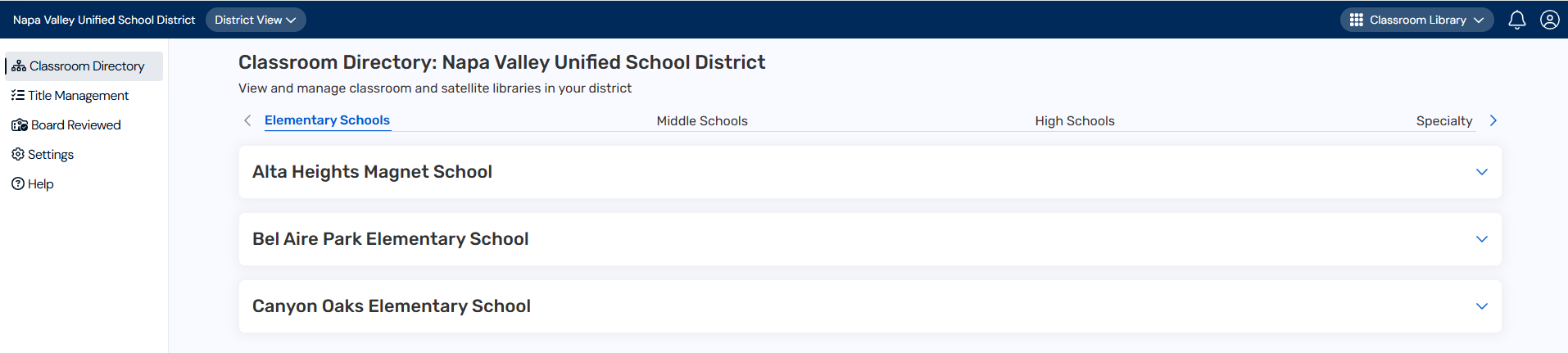
- From the sidebar, click Settings.
- In the Rostering and Additional User Type row, click
 .
. - Select the Enable Rostering checkbox.
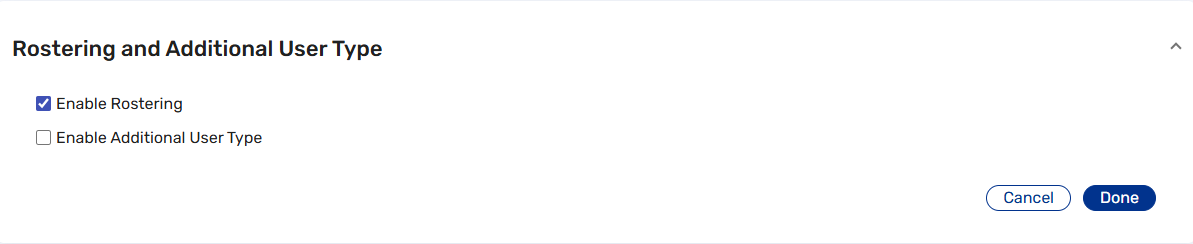
- Click Done.
|
Note: After you enable student rostering, teachers can automatically import students from a Destiny homeroom, add students individually, or enter student information manually. |