Move unclaimed classroom libraries
If you have unclaimed classroom libraries, you can move them to their correct site.
|
Note: You can only move unclaimed classroom libraries to a valid site within the district. They cannot be moved to another site listed on the Unclaimed District-Imported Classrooms tab. |
To move unclaimed classroom libraries:
- Log in to Destiny.
- From the primary navigation bar, select
 > Classroom Library. The Classroom Directory page appears.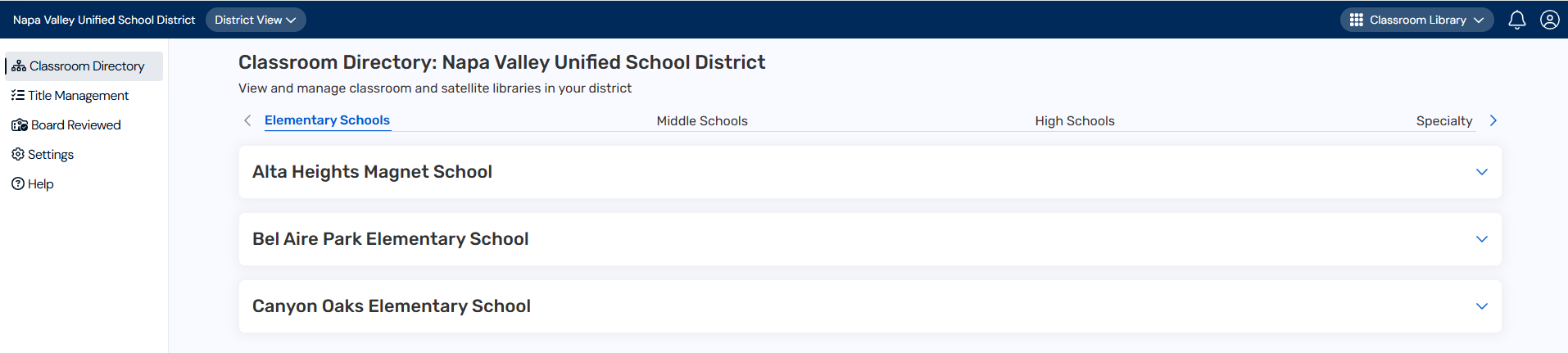
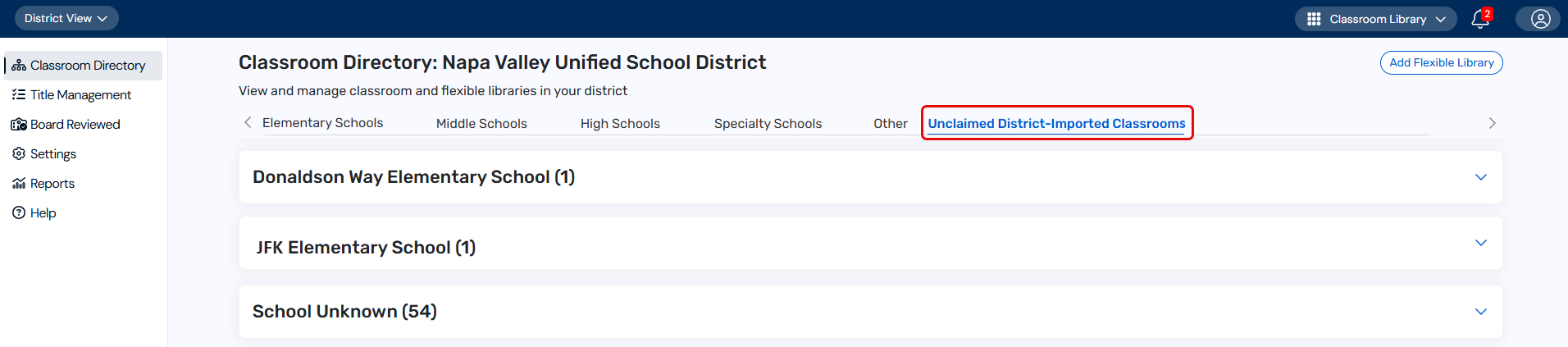
- Click the Unclaimed District-Imported Classrooms tab.
- Next to the desired site name, click
 .
. - Click Move classroom library.
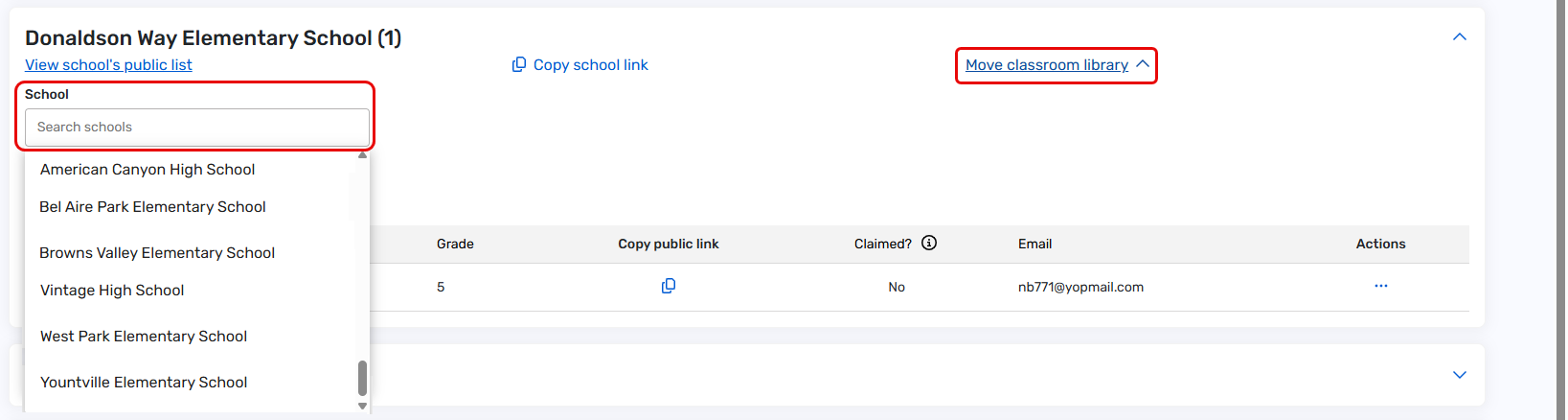
- From the School drop-down, select the school you want to move the classroom library to. A pop-up appears.
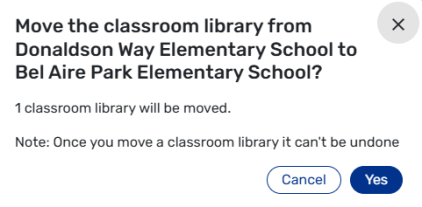
Note: If you have multiple unclaimed classroom libraries, they must be moved together. You cannot move an individual classroom library.
- Click Yes. A message lets you know the classroom library was moved successfully to the appropriate site.