Add, edit, or delete bins
You can add a new bin to your library, or edit or delete an existing one.
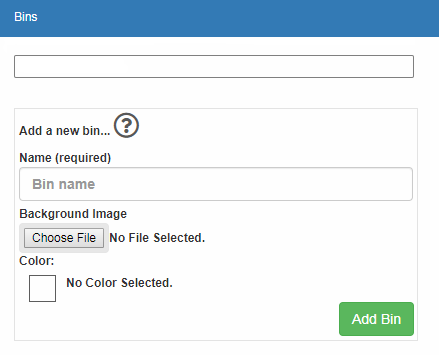
To add a new bin:
- From the sidebar, click Settings.
- Under Bins, type a Bin name.
- To add an image to the bin, click Choose File. Select an image from your computer, and then click Open.
- To customize the bin color, click a color.
- Click Add Bin.
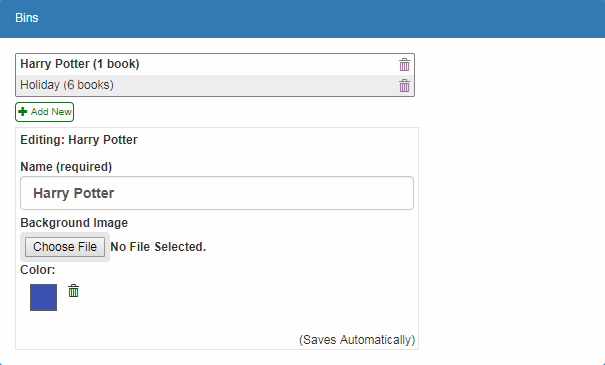
To edit a bin:
- Click the name of a bin.
- Edit the information in the fields. Your changes save automatically.
To delete a bin:
- Click
 next to a bin. A pop-up appears.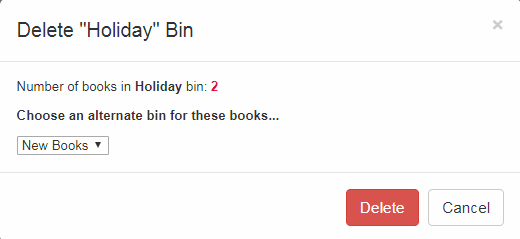
- Do one of the following:
- From the drop-down, select a different bin to move your books to.
- To permanently remove the bin, click Delete.
- To exit, click Cancel.