Access a guest cataloger link
District and site-level administrators can add books to specific classroom libraries on the Classroom Directory page via a guest cataloger link.
|
Notes:
|
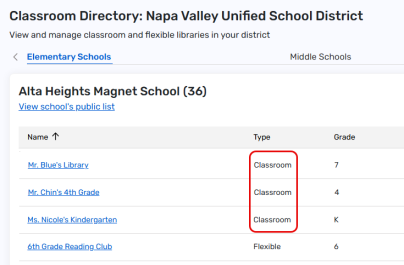
To access a guest cataloger link (for district-level administrators):
- Log in to Destiny as a district-level administrator.
- From the primary navigation bar, select
 > Classroom Library. The Classroom Directory page appears.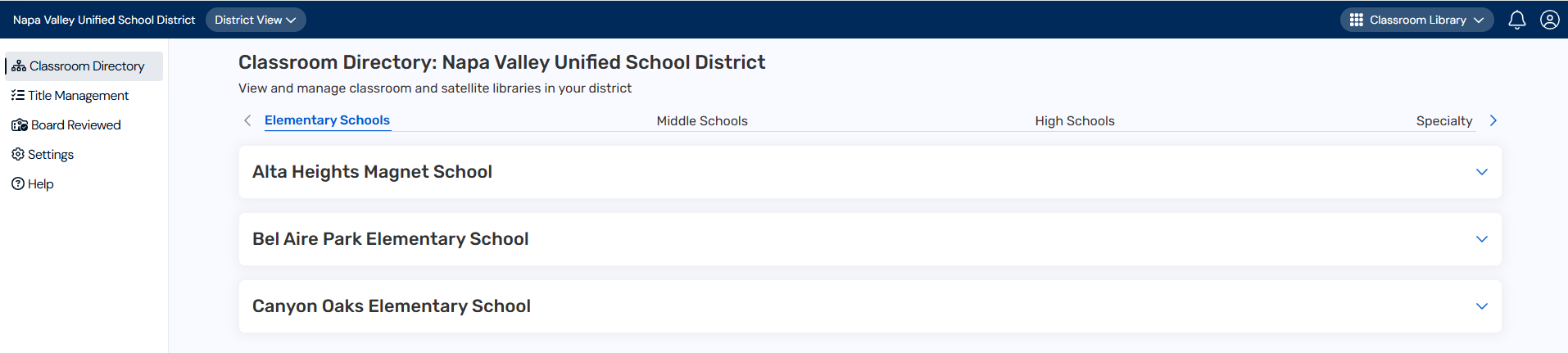
- At the top of the page, under Classroom Directory, click your desired site type. A list of schools in your district appears.
- In the row of the school you want, click
 to see a list of classrooms.
 - In the row of the classroom you want, under Actions, select
 > Add Books. The Add a Book page opens in a new tab.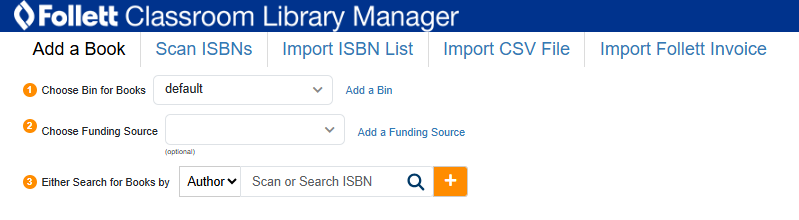
- To add a book, choose your desired method by clicking the corresponding tab. For example, to add books by importing a list of ISBNs, click the Import ISBN List tab.
To access a guest cataloger link (for site-level administrators):
- Log in to Destiny as a site-level administrator.
- From the primary navigation bar, select > Classroom Library. The Classroom Directory page appears.
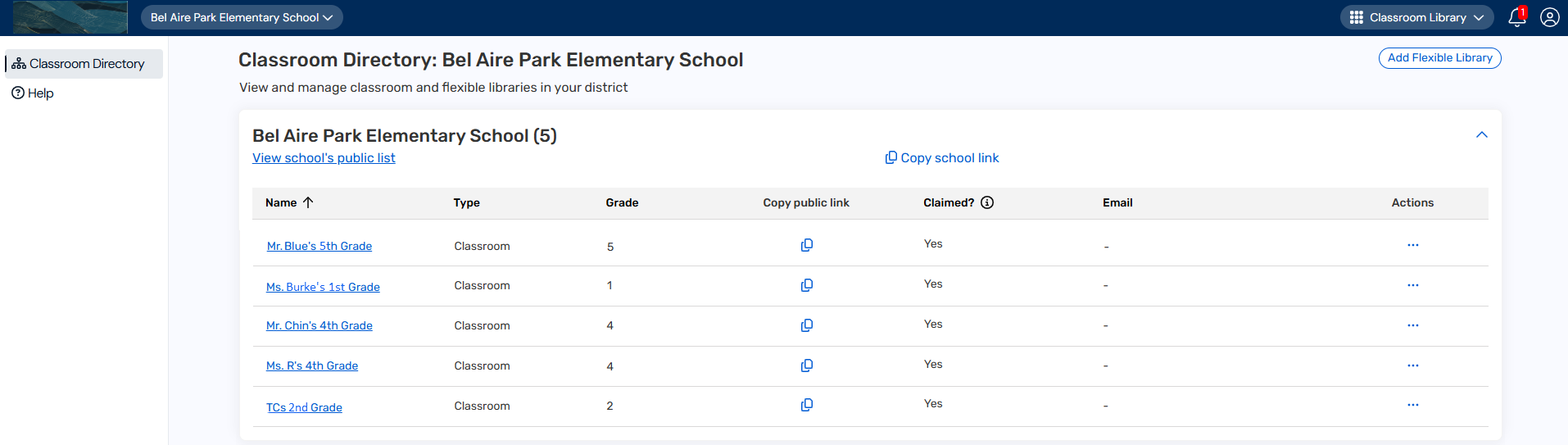
- Follow steps 5-6 in the district-level administrators section above.